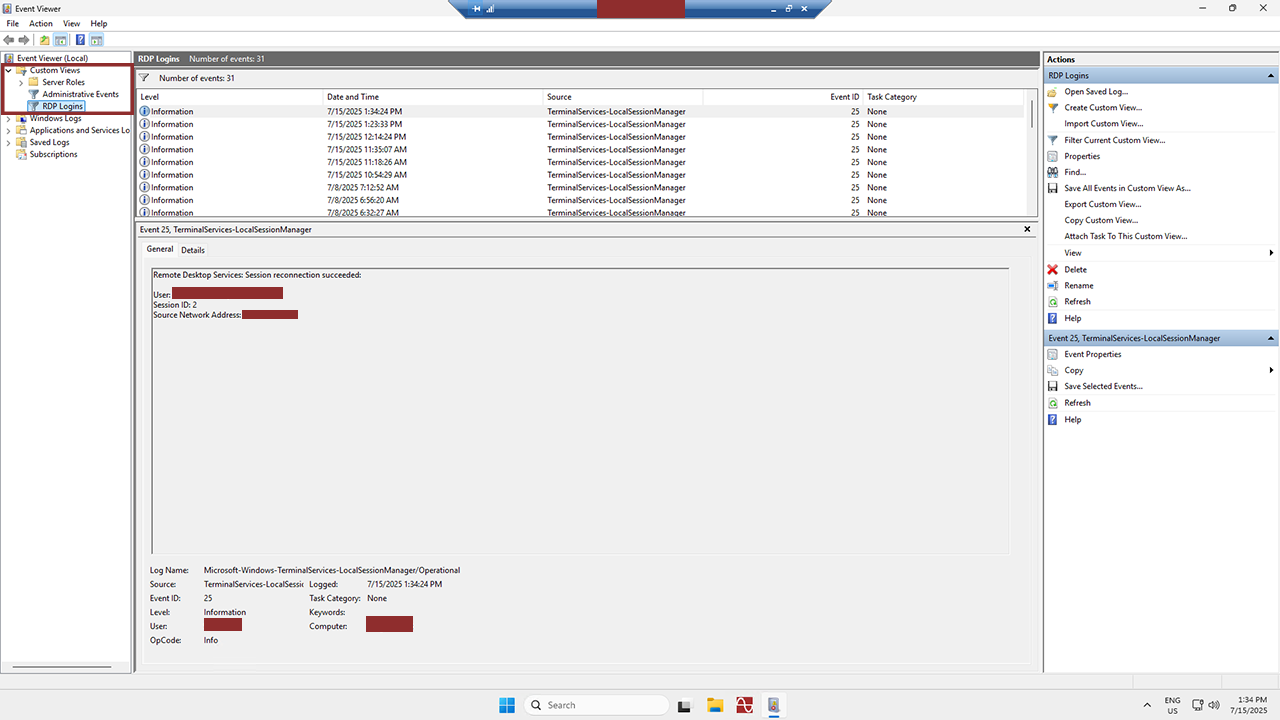
If you’re worried that someone other than you may have logged into your server recently, check out this guide on how to find the list of successful logins into your server.
How to check for Remote Desktop Protocol (RDP) logins
1
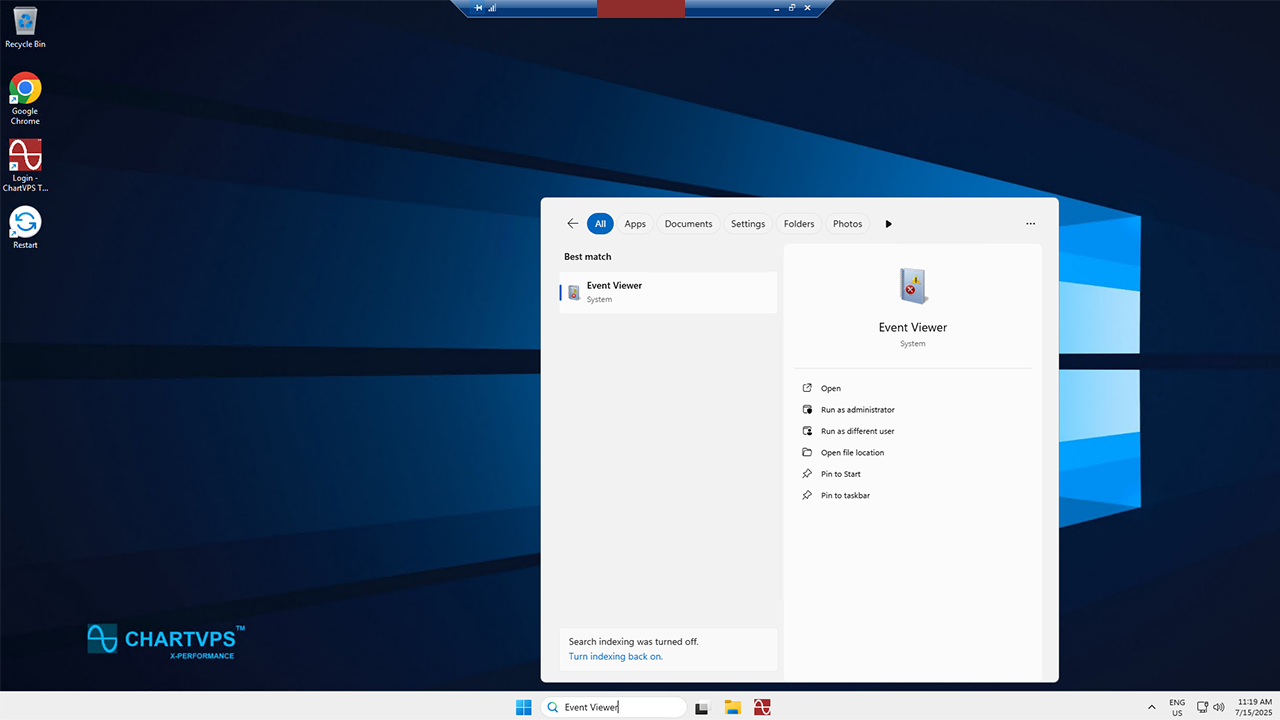
First off, click the search bar at the bottom of the screen, next to the Windows icon. From there, type in “Event Viewer,” then select the Event Viewer to open the application.
2
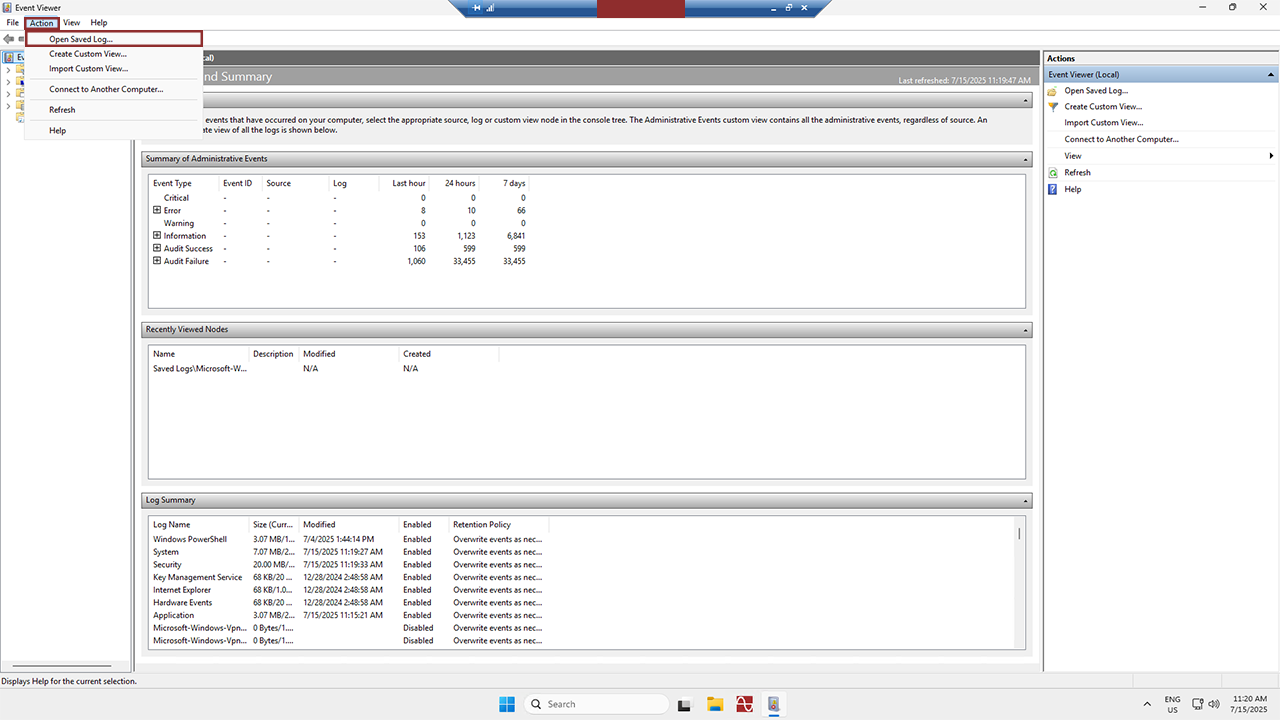
Now we’ve got to find the correct log file. Click on Action in the top left of the application, then hit Open Saved Log.
3
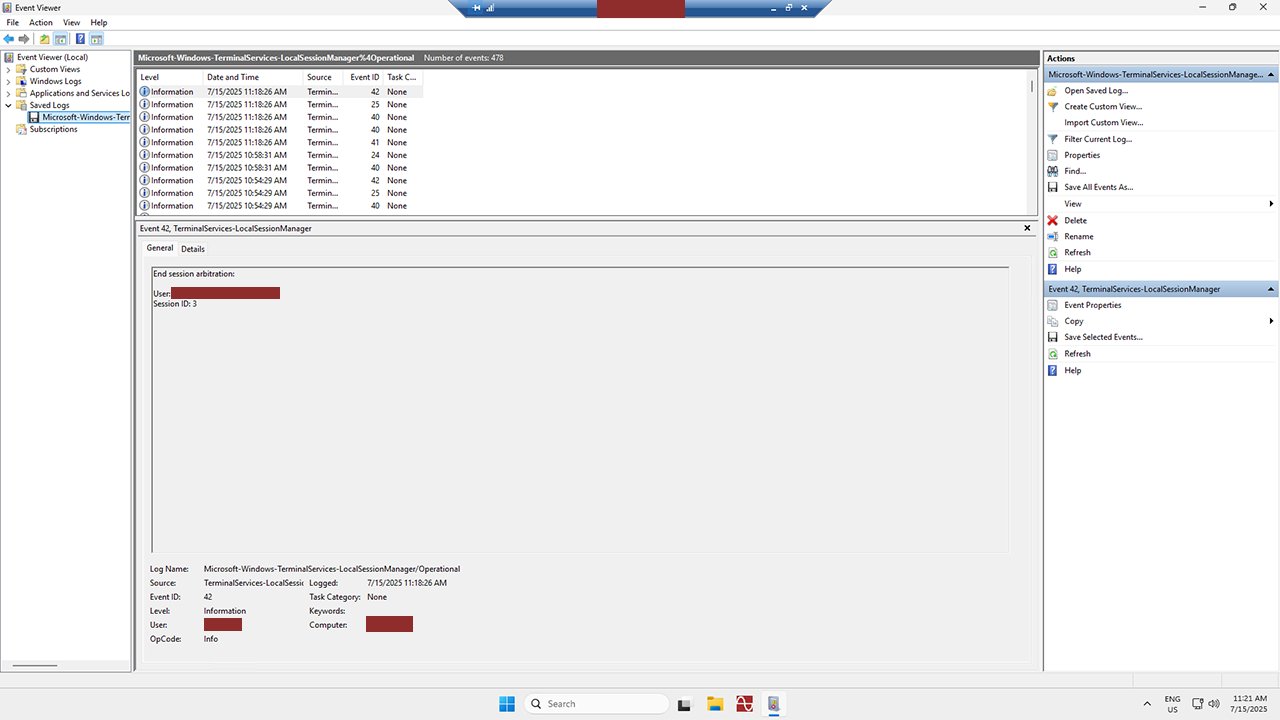
Here’s the toughest part: we’ve got to find the proper log file that’s related to remote desktop connections. Get ready, as the name is pretty long – it’s called Microsoft-Windows-TerminalServices-LocalSessionManager%4Operational. You can find it in the following directory: This PC > Local Disk (C:) > Windows > System32 > winevt > logs.
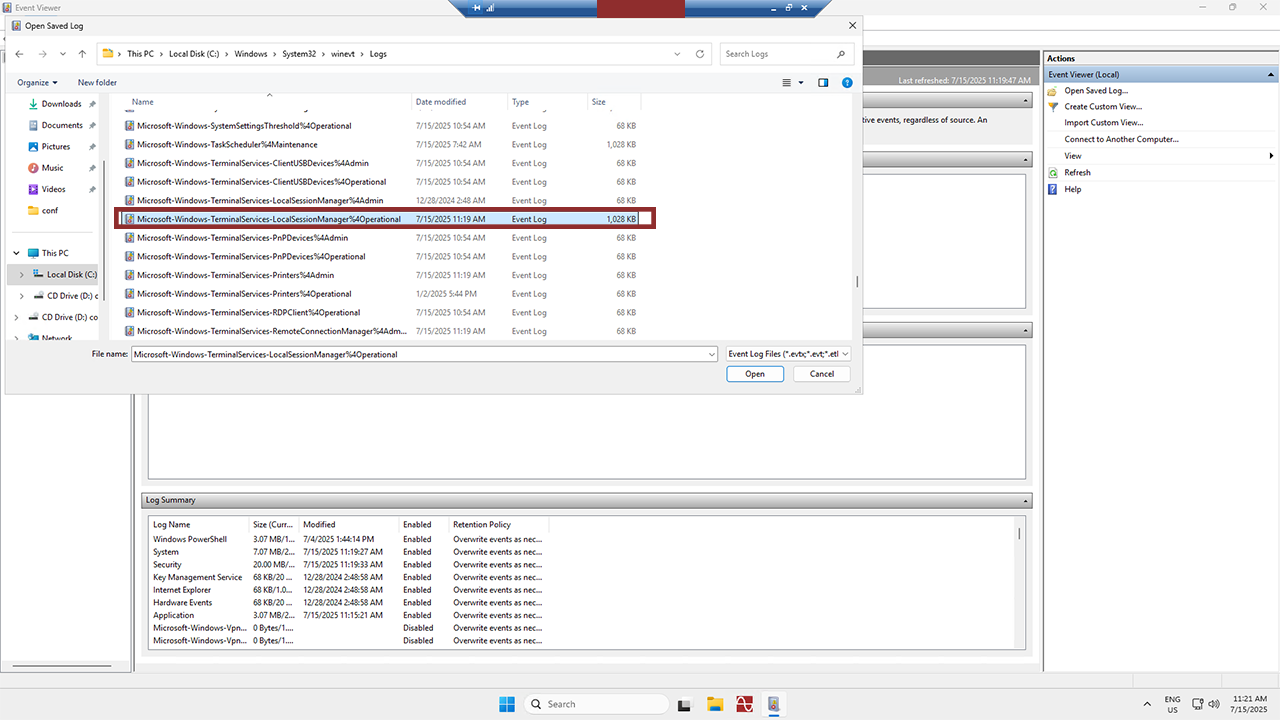
- Double click that log, and your screen should look like this:
4
Next, we need to filter the log to see when any successful logins took place. Click on Filter Current Log on the right, and then type 25 into the space depicted in the image below. Then click OK.
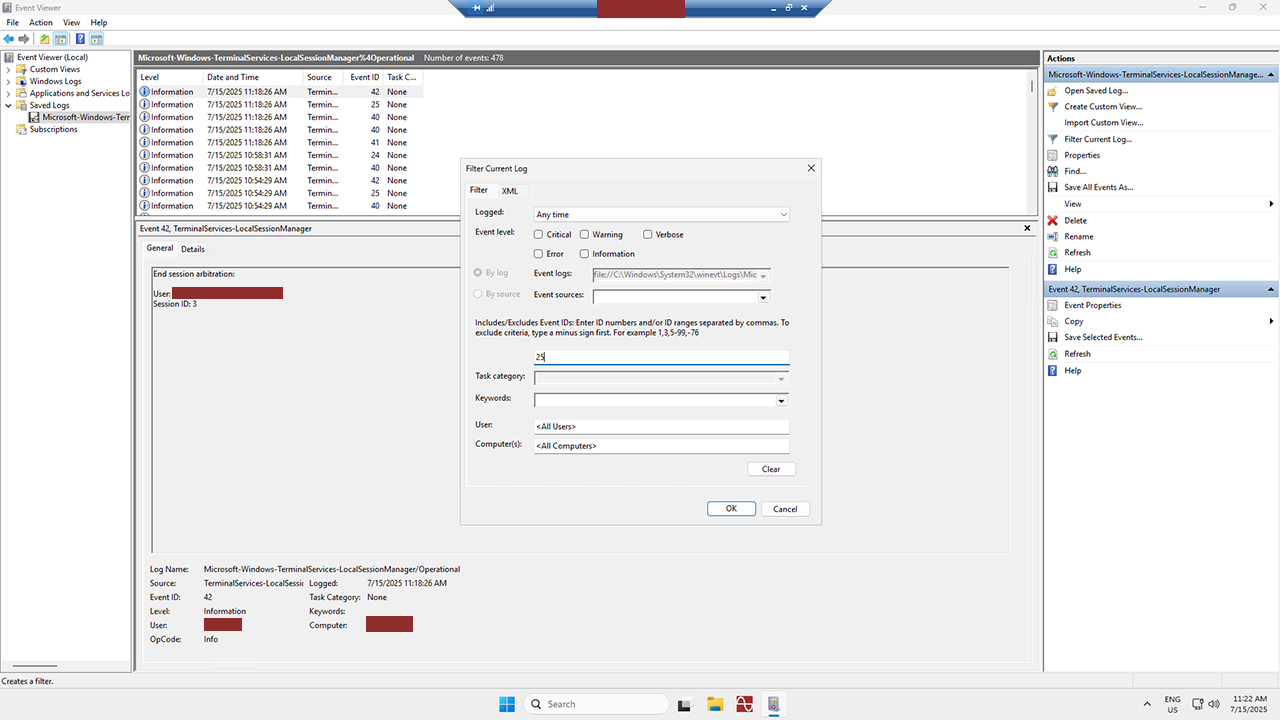
- Now, you can see when your server was accessed, as well as the IP address from which it happened. If you’re looking for a specific incident, all you’ve got to do is find the event in the Date and Time column, and click on it to view the details of the login!
How to save the results for future use.
- It’s worth noting that you can save this log for future reference. Just right-click Microsoft-Windows-TerminalServices-LocalSessionManager%4Operational under Saved Logs on the left-hand side of the program, then select Create Custom View. Type 25 in the same field as before, then hit OK.
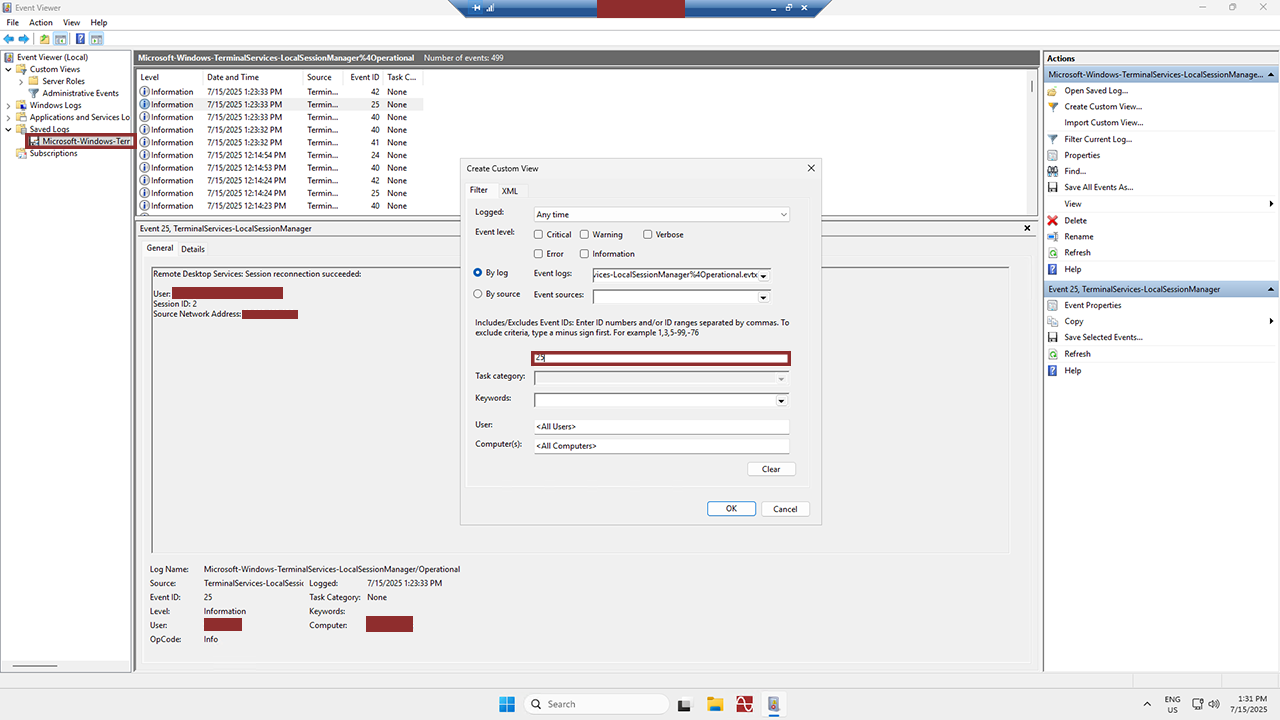
- Finally, you can name it something like RDP Logins, and it’ll be readily available in the Custom Views folder, also on the left-hand side. Now, you can easily check remote logins whenever you want!