
Few things test a trader’s patience quite like getting locked out of your server right as market activity picks up. Whether Remote Desktop throws an error message or hangs on a blank screen, don’t panic! Most connection roadblocks stem from miscopied credentials or a frozen session. Let’s walk through four of the most common Remote Desktop connection issues and get you back into your trading setup!
Tip
Issue 1: “Your credentials did not work” or Invalid Credentials
This is by far the most frequent connection hitch. Remote Desktop Connection requires the exact administrator credentials generated for your server, and even a single extra space or misplaced character will trigger an access denied prompt.
1Log in to the ChartVPS Portal and head over to your active service dashboard to view your exact server details.
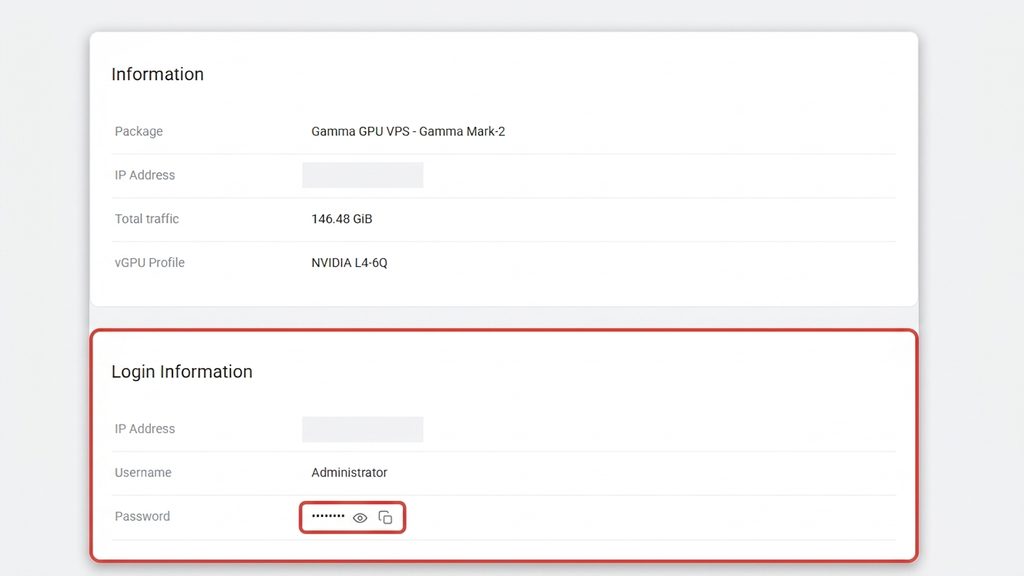
2Compare your username and password against what you entered in Remote Desktop Connection. Make sure your username is entered as Administrator (or the specific username shown in your portal).
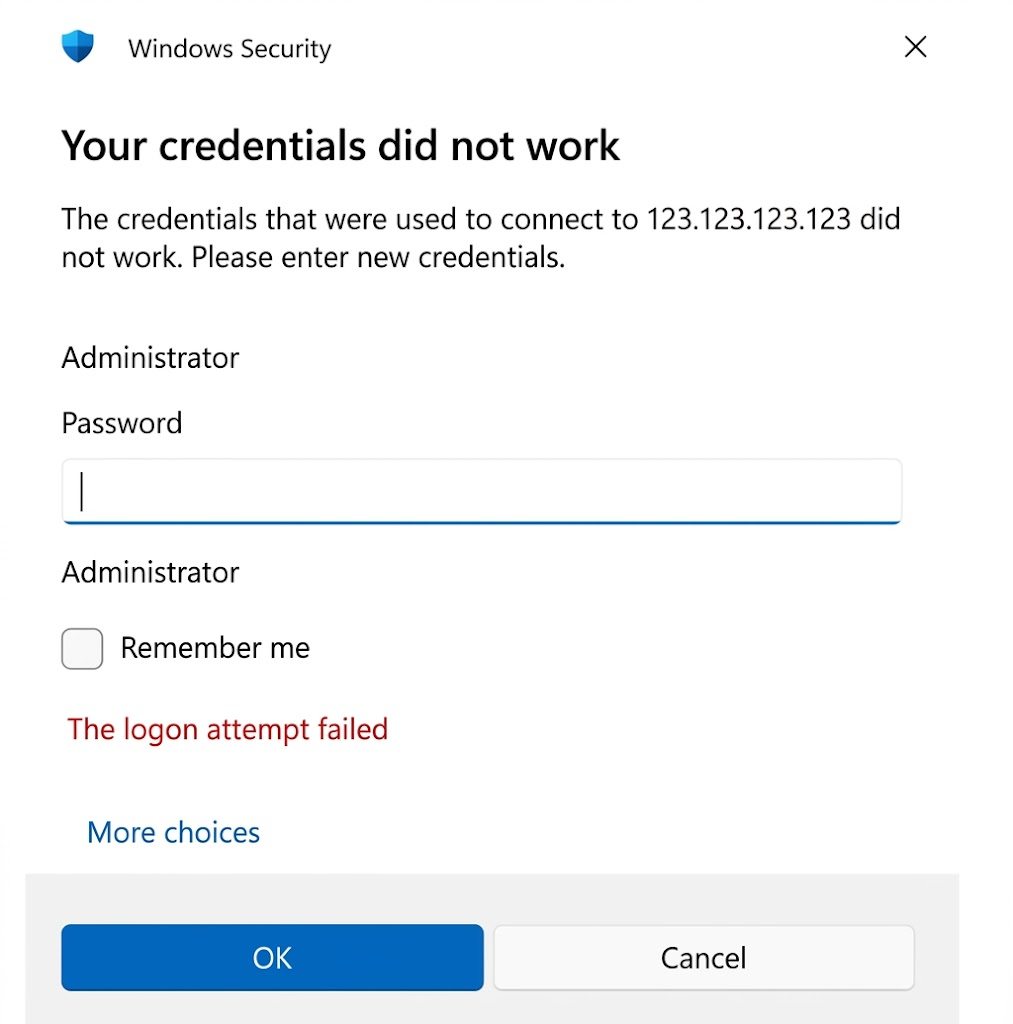
3Re-copy the password directly from the portal, taking care not to highlight trailing spaces, and paste it into the password prompt.
Avoid typing passwords manually from memory. Server passwords contain complex strings of upper-case and lower-case letters, numbers, and symbols. Copying and pasting directly from the ChartVPS Portal prevents accidental typos that halt your login attempt.
Warning
Issue 2: “Remote Desktop cannot connect to the remote computer”
This error is usually caused by an outdated local Windows RDP client, pending device updates, or temporary ISP routing issues. However, if the server itself is at fault, it is typically due to a frozen Remote Desktop Service or pending system updates. Follow the steps below to verify and resolve the issue:
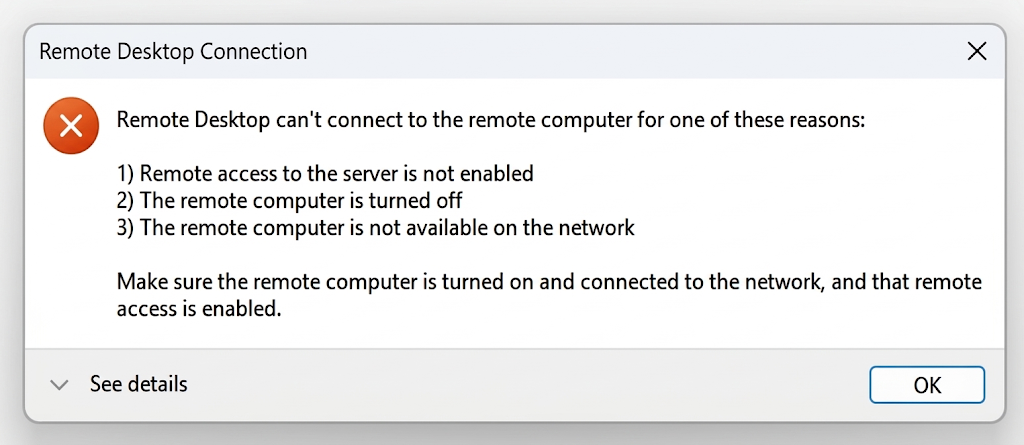
1Verify that your local internet connection is fully operational by opening any website in your browser.
2Navigate to the ChartVPS Portal and select your active server.
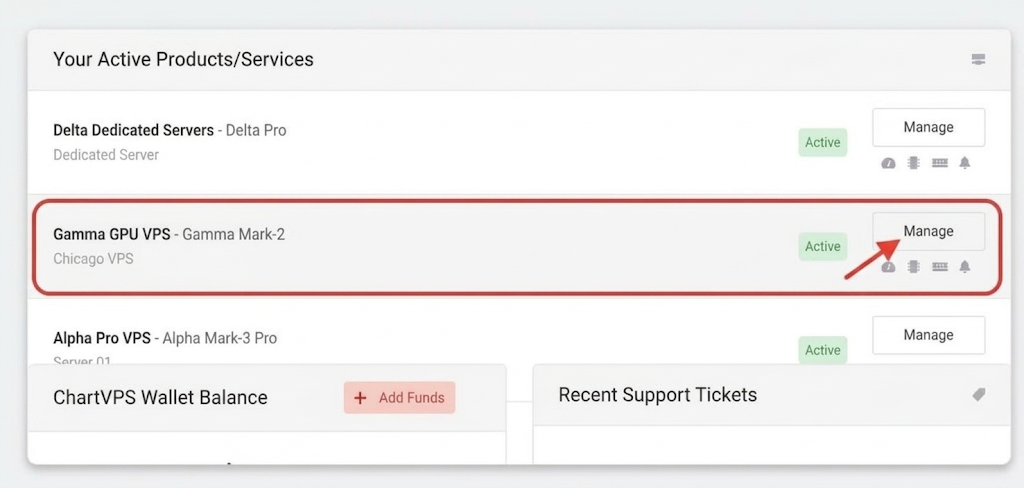
3Locate the server management panel, click Restart, and allow roughly two to three minutes for the operating system to complete its reboot cycle.
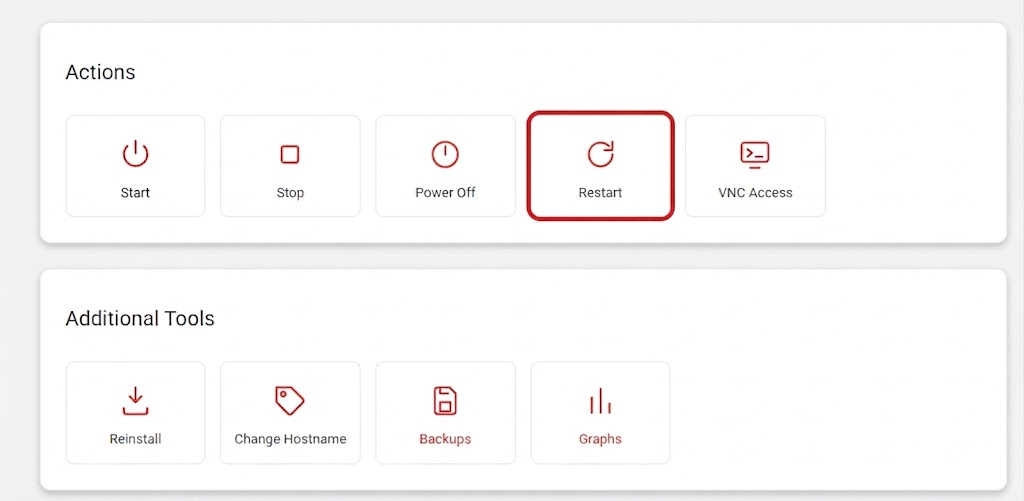
4Relaunch Remote Desktop Connection, enter your IP address, and attempt to connect again..
Issue 3: Stuck on “Please wait…” or Black Screen
When Remote Desktop connects but leaves you staring at a solid black or blank window, the remote display session has hung while rendering the desktop environment.
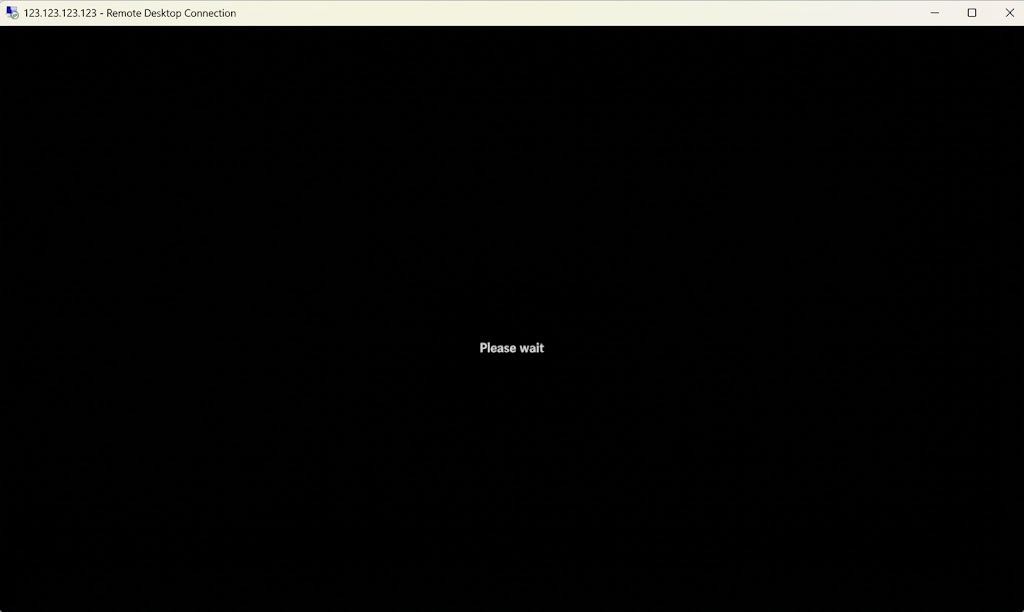
1Give the screen two full minutes to complete its internal process before taking action. If the VPS connects, please review your local connection, this is typically a sign that your local speed is insufficient for the connection.
2If the screen remains frozen, open the ChartVPS Portal.
3Click Restart to reboot the server and force Windows to clean up stuck system processes.
4Reopen Remote Desktop Connection and log back into your server.
Where to Go From Here
For a complete walkthrough on using your portal control panel, take a look at our guide on How to Control the Server From the Portal.
Not finding what you’re looking for? Get in touch with our highly experienced team of real people. we’re around 24/7. Checking on a live issue? Take a look at our current system status.
Tip