
If you’re running multiple MetaTrader (MT5/MT4) terminals on your Windows VPS and cannot open more than multiple instances, even though CPU and RAM usage are low, you may be hitting a Windows limitation known as Desktop Heap Allocation.
Each MT4/MT5 terminal uses Windows graphical resources to display charts, market data, indicators, and terminal windows. When the available desktop heap for a Windows user session becomes exhausted, new terminals may fail to launch correctly even though the VPS still has available CPU and memory.
Common symptoms include:
- Additional terminals fail to open
- Blank or partially rendered windows
- Missing charts or interface elements
- Terminals that immediately close after launch
- “Out of memory” style errors despite low RAM usage
Important: Increasing desktop heap allocation can allow additional MT4/MT5 terminals to run within a single Windows user session. However, this is not an unlimited scaling solution.
As the number of terminals increases, Windows must allocate more graphical resources to a single session. Excessively increasing desktop heap can impact overall system stability and may not resolve issues for very large deployments.
For customers running a large number of terminals, distributing terminals across multiple Windows user accounts is generally the most stable long-term solution.
Recommended Approach
Up to approximately 5-8 terminals
- Desktop heap adjustment is often sufficient.
- Monitor CPU, RAM, and VPS responsiveness.
Approximately 8-12 terminals
- Desktop heap adjustment may help.
- Consider separating terminals across multiple Windows user accounts for improved stability.
10+ terminals or large deployments
- We strongly recommend distributing terminals across multiple Windows user accounts.
- Each user account runs in its own Windows session with its own desktop resources.
- This reduces the likelihood of GUI resource exhaustion and improves long-term stability.
Prerequisites
Before proceeding, ensure that each MT5/MT4 terminal is installed in its own unique directory. For example:
C:\Program Files\MetaTrader 5/4 - Terminal 1C:\Program Files\MetaTrader 5/4 - Terminal 2C:\Program Files\MetaTrader 5/4 - Terminal 3
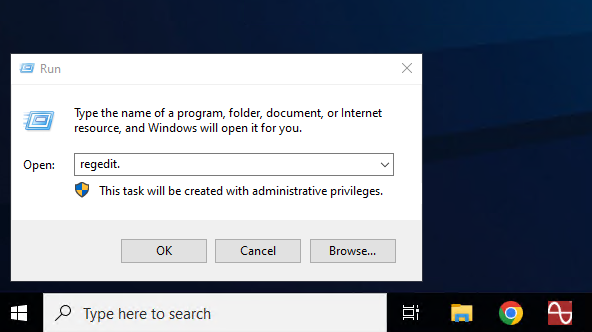
Step 1: Open the Registry Editor
- Press Windows Key + R.
- Type regedit.
- Click OK or press Enter.
Step 2: Navigate to the Desktop Heap Configuration
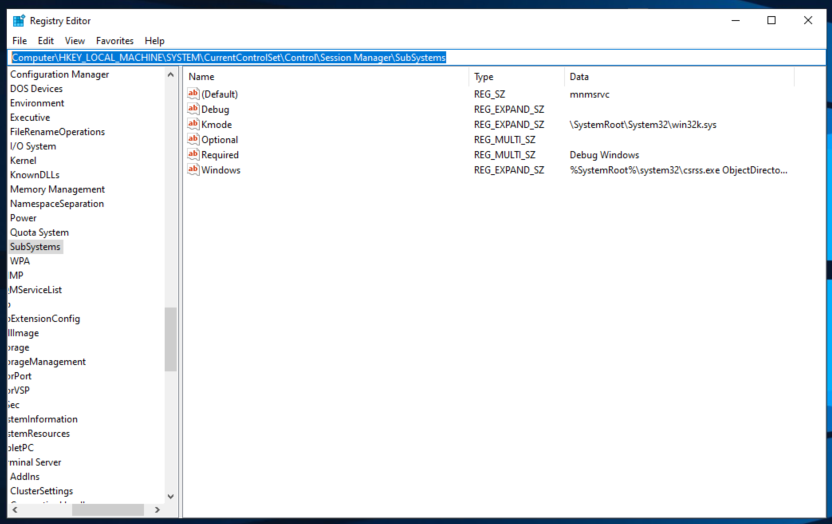
In the Registry Editor, browse to:
HKEY_LOCAL_MACHINE\SYSTEM\CurrentControlSet\Control\Session Manager\SubSystems
Step 3: Modify the Windows Value
- In the right-hand pane, locate the Windows entry.
- Double-click Windows to edit it.
- Find the parameter that begins with:
SharedSection=By default, it typically appears as:
SharedSection=1024,20480,768
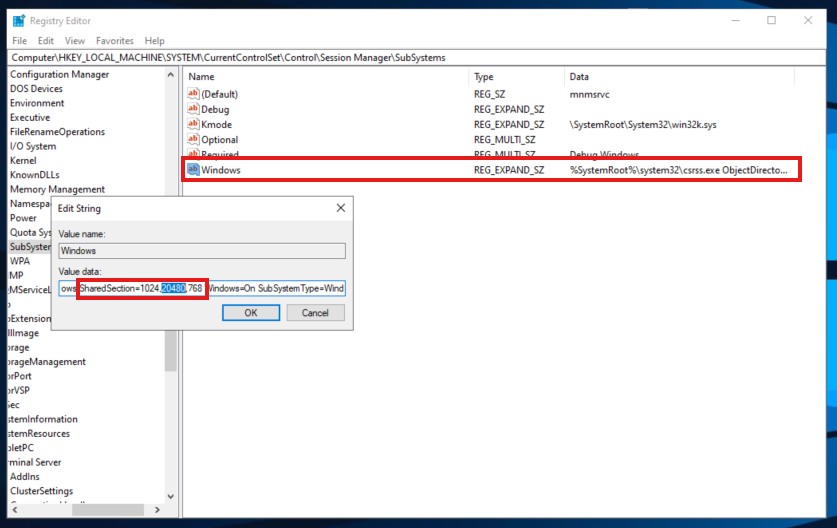
- Change the second value from 20480 to 40960.
Example:
SharedSection=1024,40960,768
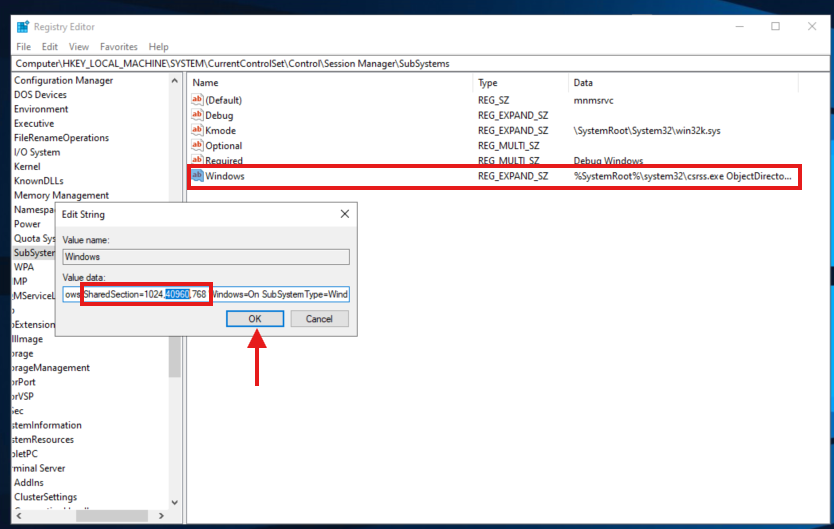
This increases the desktop heap allocation available for graphical applications such as MT5/MT4.
Step 4: Save the Changes
- Click OK to save the updated value.
- Close the Registry Editor.
Step 5: Restart the VPS
A server reboot is required for the changes to take effect.
Important: Restarting the VPS will close all running MT5/MT4 terminals, Expert Advisors (EAs), scripts, and active trading sessions. We recommend performing this change during non-trading hours or when it is safe to temporarily stop your trading activities.
Verify the Fix
After the VPS has restarted:
- Open your existing MT5/MT4 terminals.
- Launch multiple MT5/MT4 terminals.
- Additional terminals should now open successfully without graphical errors or silent failures.
When to Use Multiple Windows User Accounts
For larger MT4/MT5 deployments, separating terminals across multiple Windows user accounts is often more effective than continually increasing desktop heap values.
With this approach:
- Each Windows user account runs its own session.
- Each session receives its own desktop resources.
- GUI resource usage is distributed more evenly.
- Stability improves when running a large number of terminals.
This is the preferred approach for customers running many terminals on higher-capacity VPS plans.
Need Help?
If you continue experiencing issues after applying this change, please contact the ChartVPS Support team and provide the following:
- Number of MT5/MT4 terminals running
- VPS plan name
- Screenshot of any error messages
- Current CPU and RAM usage
Our team will be happy to assist you further.