
You can configure Windows to automatically launch MetaTrader 4 (MT4) or MetaTrader 5 (MT5) whenever you sign in to your VPS after a restart. This helps ensure your trading platform is ready without needing to open it manually.
Scheduled Task
A Scheduled Task tells Windows to launch MetaTrader automatically when your Windows user account signs in.
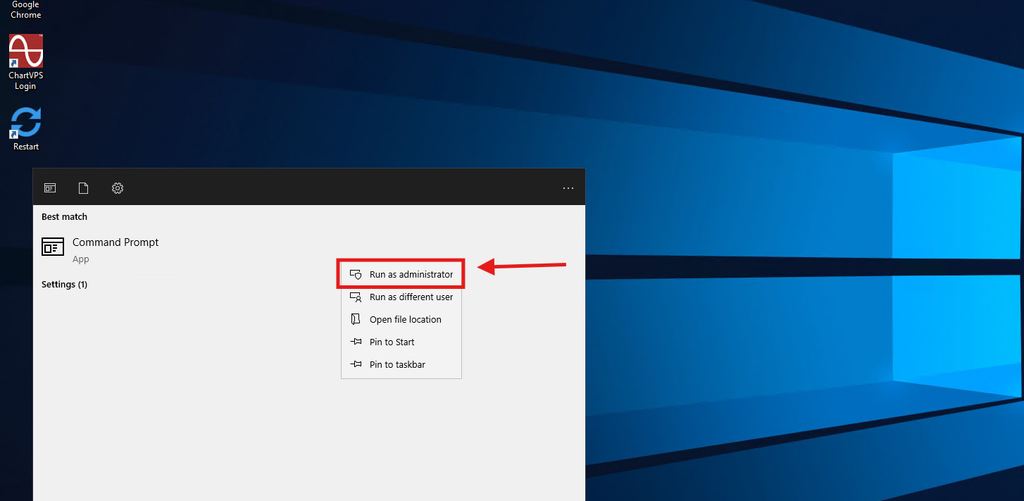
Step 1. Open Command Prompt as administrator
Click Start, type cmd, then click Run as administrator.
Step 2. Find your MetaTrader installation path
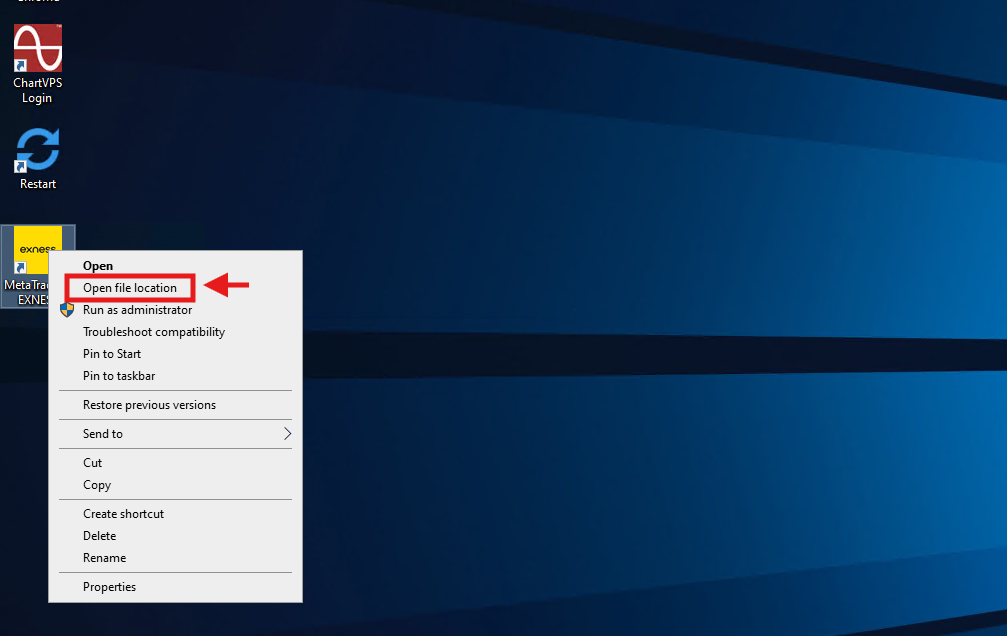
- Right-click your MetaTrader desktop shortcut.
- Select Open file location.
- Right-click the MetaTrader shortcut in the folder and select Properties.
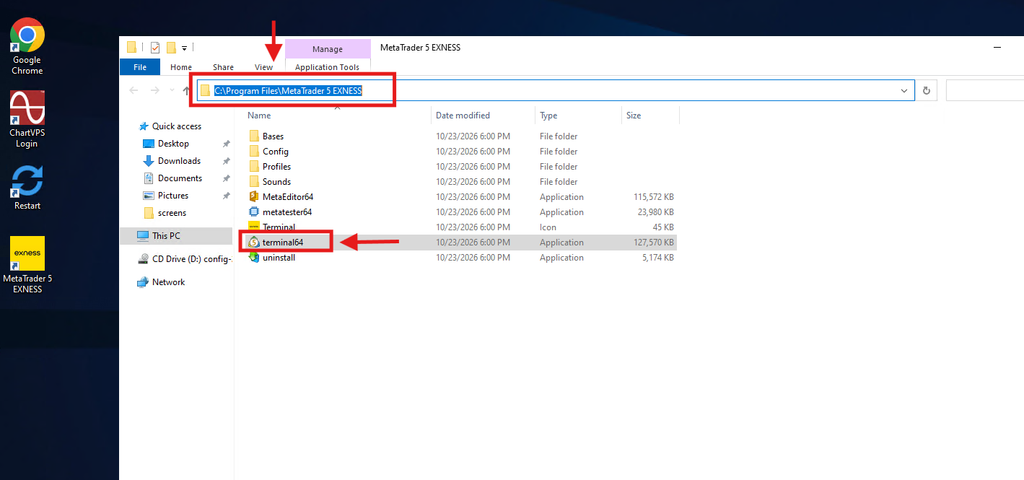
- Copy the executable path from the Target field.
Make sure you have the correct executable:
- MT5:
terminal64.exe - MT4:
terminal.exe
Step 3. Create the Scheduled Task
Copy the appropriate command below and replace the example path with your actual MetaTrader installation path.
For MT5:
schtasks /create /tn "MT5 Auto Start" /tr "\"C:\Program Files\MetaTrader 5\terminal64.exe\"" /sc onlogon /delay 0000:10 /ru "%USERNAME%" /it /fFor MT4:
schtasks /create /tn "MT4 Auto Start" /tr "\"C:\Program Files (x86)\Pepperstone MetaTrader 4\terminal.exe\"" /sc onlogon /delay 0000:10 /ru "%USERNAME%" /it /f
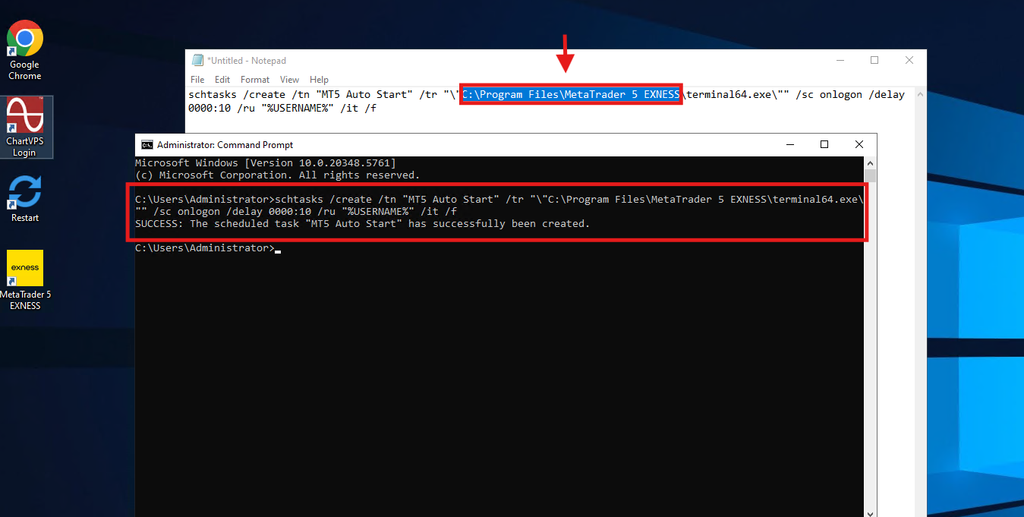
If you see a SUCCESS message confirming that the scheduled task was created, the setup is complete.
What each command means
/tndefines the task name. You can rename it to something like “Start MT5” or “Start Exness MT5”./trspecifies the MetaTrader executable Windows should launch./sc onlogonruns the task whenever your Windows user account signs in./delay 0000:10waits 10 seconds after sign-in before launching MetaTrader./ru "%USERNAME%"runs the task using your current Windows user account./itallows the task to interact with your desktop session./foverwrites an existing task with the same name.
To test if the setup is working:
- Restart your VPS.
- Sign in to your Windows account.
- Wait 10 seconds.
- Check if MetaTrader launches automatically.
If MetaTrader opens successfully, the Scheduled Task is working as expected.
Tip: keep the \" marks around the path. They stop Windows from cutting the path off at the first space.
Note: to check it worked, open Task Scheduler and look for your task name in the Task Scheduler Library. To remove it later, run schtasks /delete /tn "Start MT5" /f.
That’s it! Windows will now automatically launch MetaTrader whenever your VPS starts.